Piano VFX Liquid Manual
Thank you for using Piano VFX Liquid! Piano VFX Liquid tries to significantly improve the user experience compared to my first Piano VFX version. Let's go over the features and I'll explain most of the tools.
File import
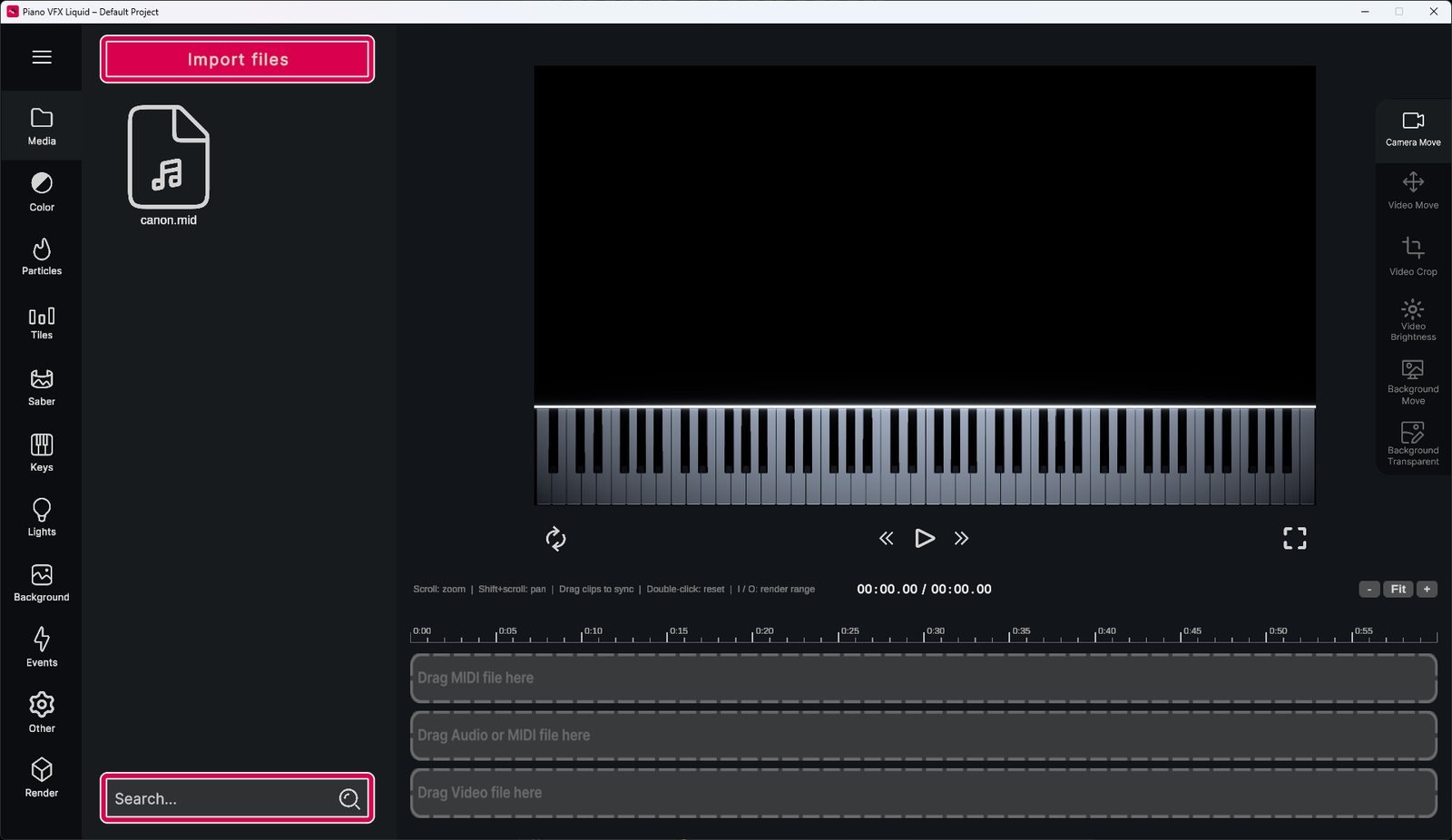
Piano VFX Liquid has a simple built-in file browser. By clicking the Import files button, you can add .mid, .mp3, .wav, .mp4, .png and .jpg files directly into it. You can drop in your entire MIDI collection and use the search bar below to find the MIDI you need.
To play a MIDI file, drag it to the MIDI slot on the timeline.
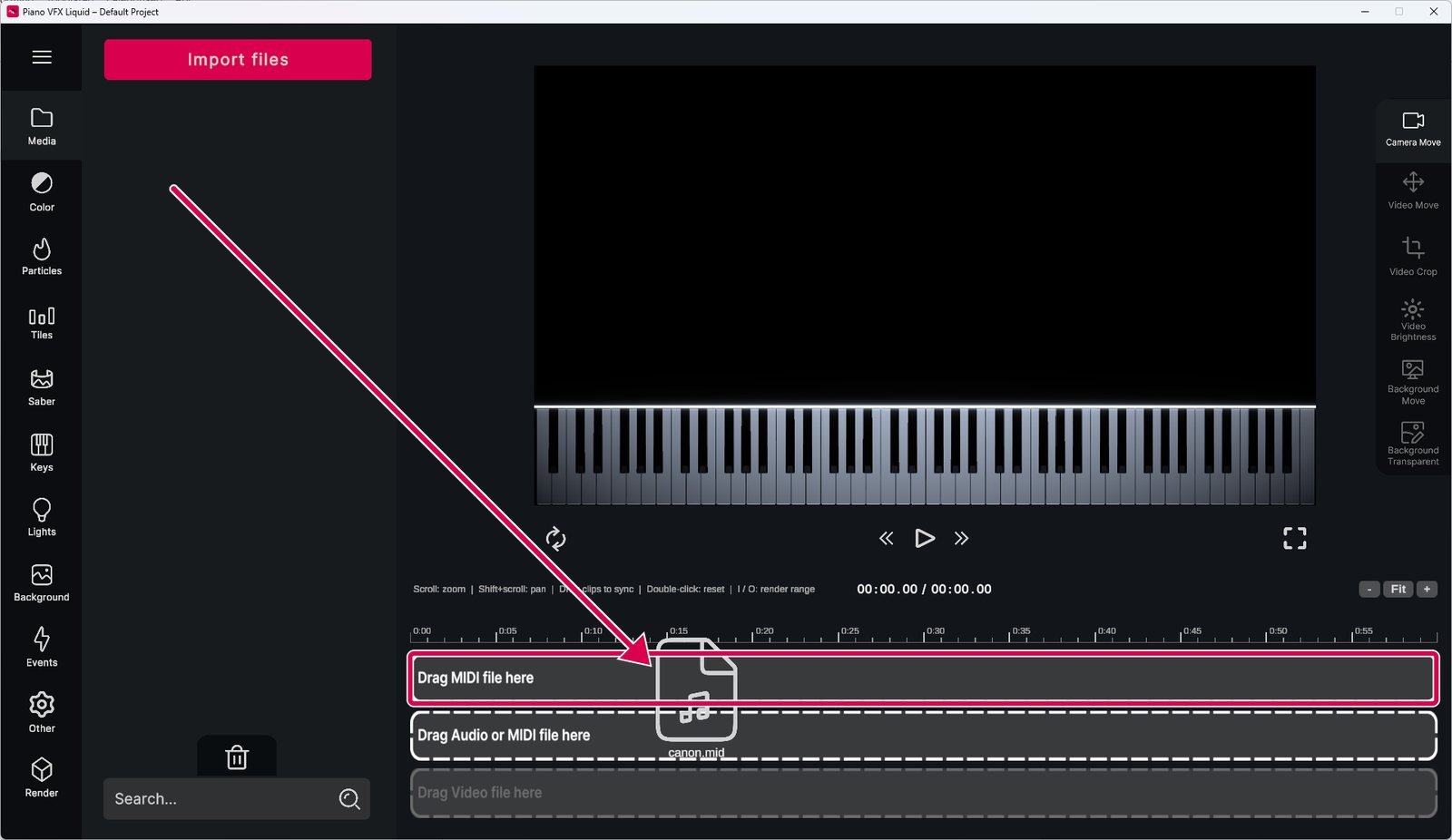
The MIDI slot only makes the tile animation. To get sound, you have to drag an audio file to the audio track and sync it by dragging the clip along the timeline. Or you can drop the same MIDI file onto the audio track and Piano VFX Liquid will use a built-in SoundFont to make the audio itself, already synced with your MIDI file.
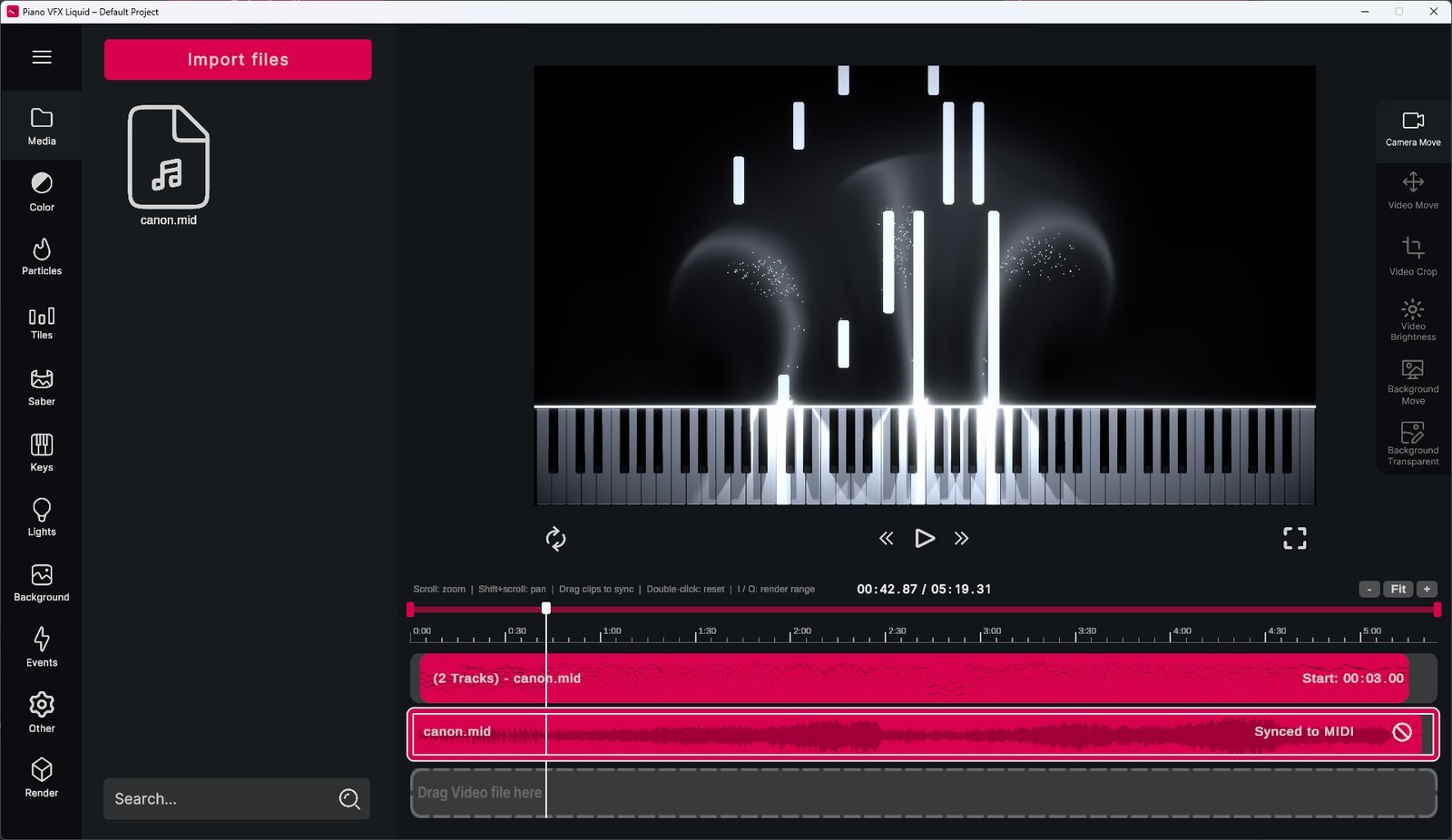
While the Camera Move tool on the right is selected, you can grab and move the animation in the preview. The mouse wheel zooms, and holding Ctrl gives you finer control. The circling arrows on the left reset the selected tool's settings to their defaults.
Color
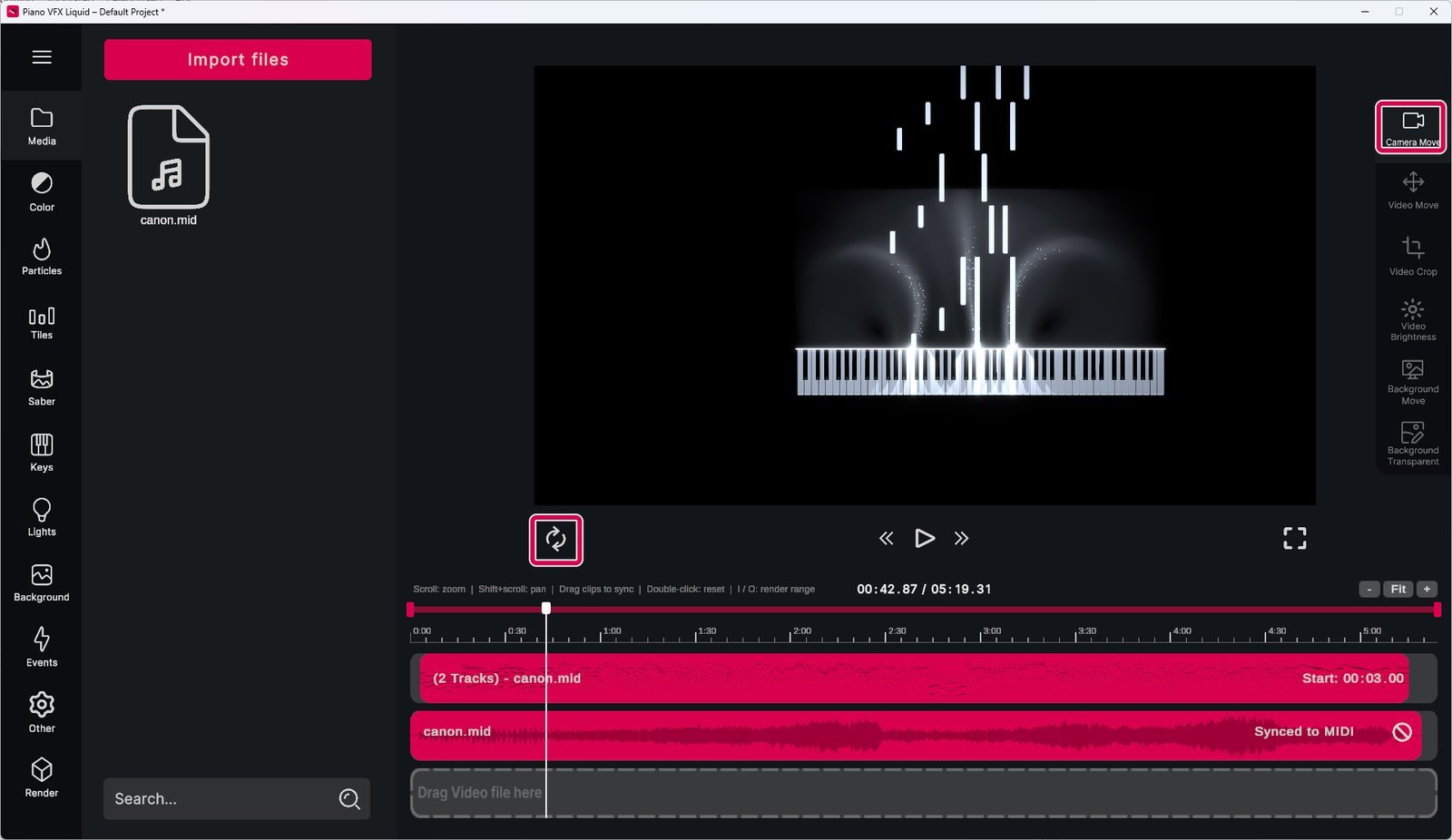
The color system is completely rewritten, so all the effect colors can be set from one place. The horizontal selector picks the color mode (Solid Color, Horizontal Gradient, Vertical Gradient or Track Color, based on the MIDI track or channel). To change the colors, click the RGB color box and a color picker pops up. Under Applied to, you can choose which effects the color applies to (particles, tiles, saber, keys, lights and background effects). Some color modes can't be applied to some effects, for example a vertical gradient to the saber, because the saber is very thin.
To use the same color mode on different elements but with different colors, select another color profile and pick another color.
Particles
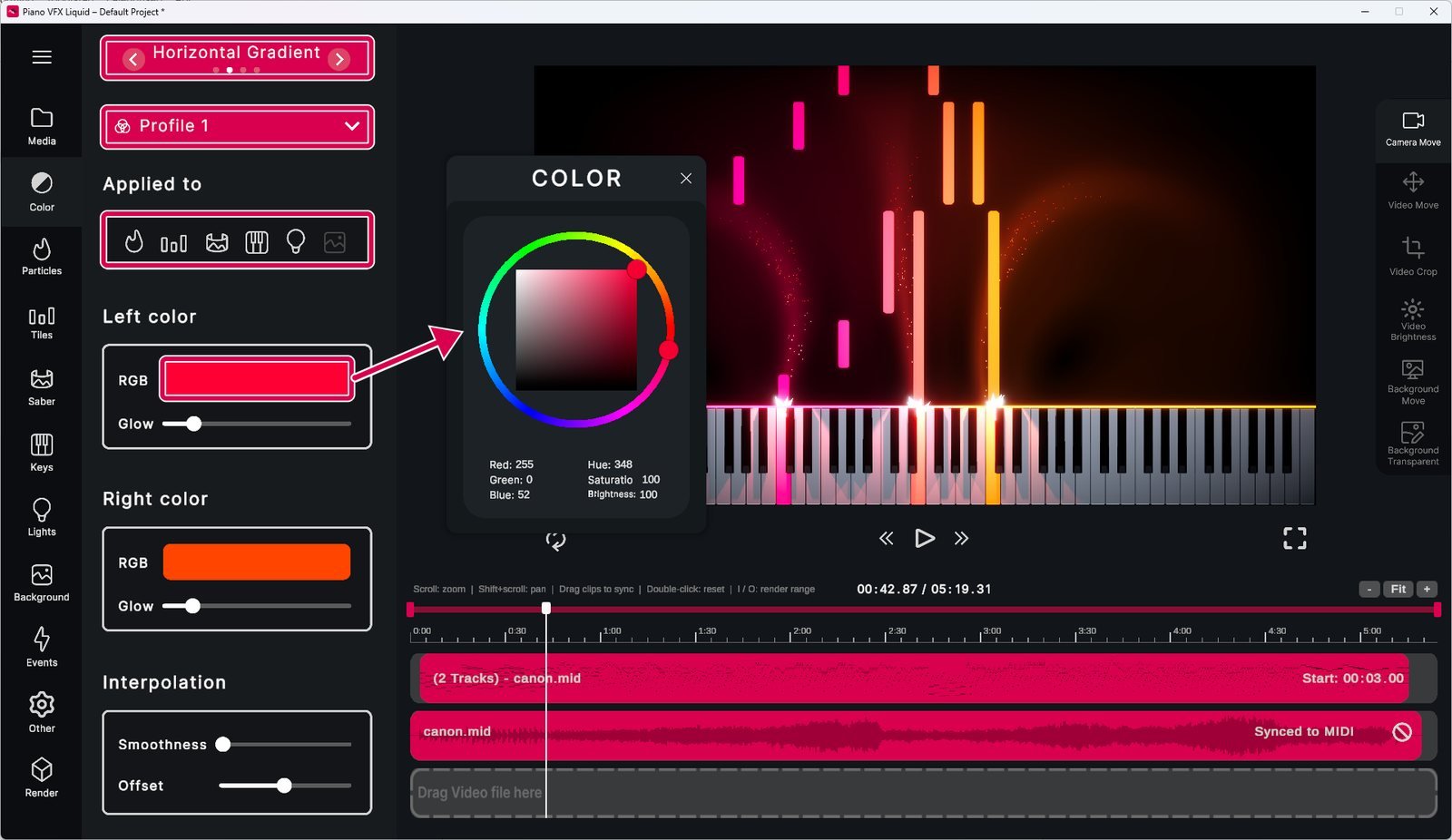
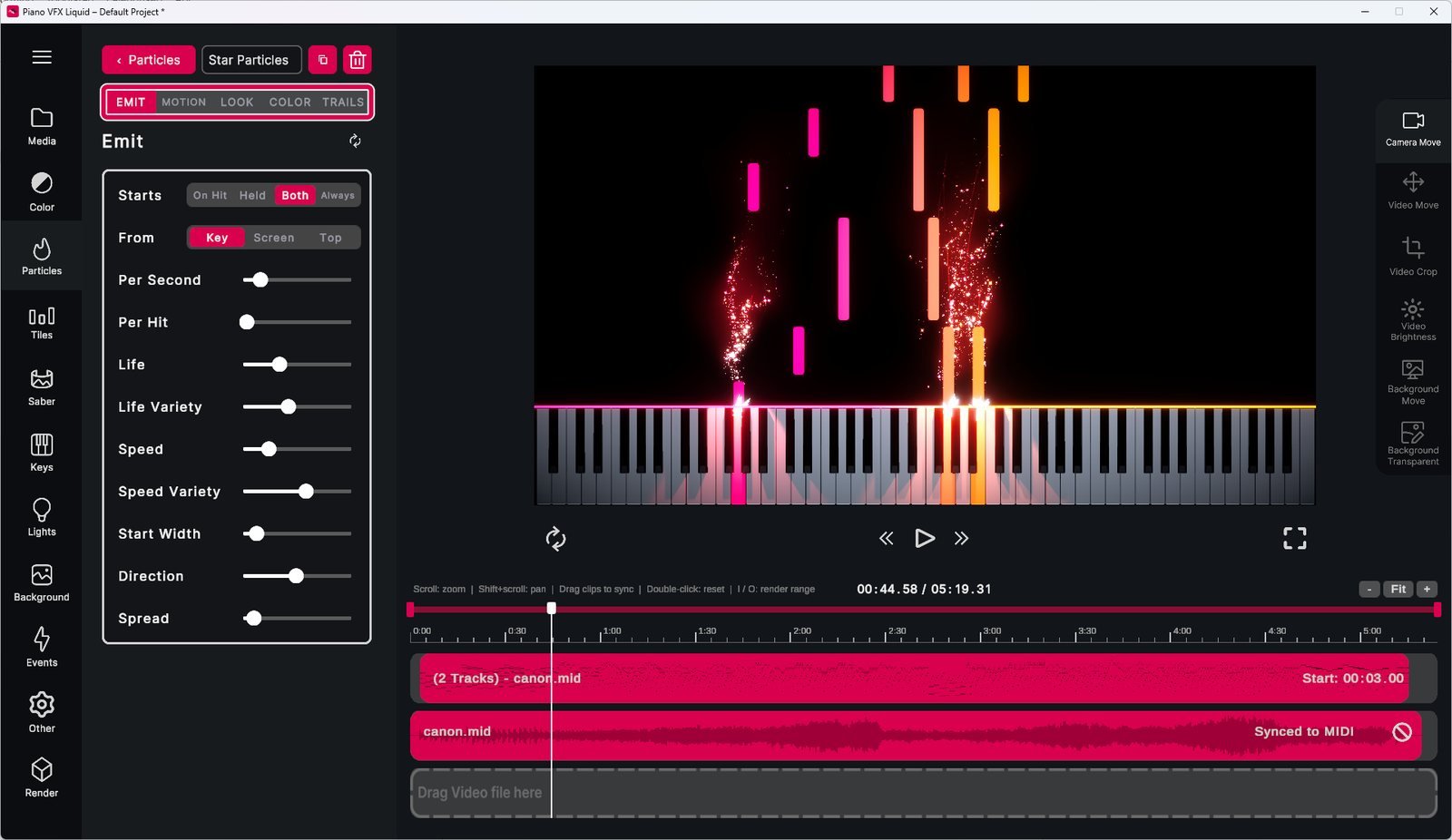
Piano VFX Liquid has a custom-built, GPU-based particle system. It's very customizable and so a bit complicated to master at first. Fortunately, there are 8 premade presets you can load and learn from. You can also edit the basic settings of these presets under the presets button.
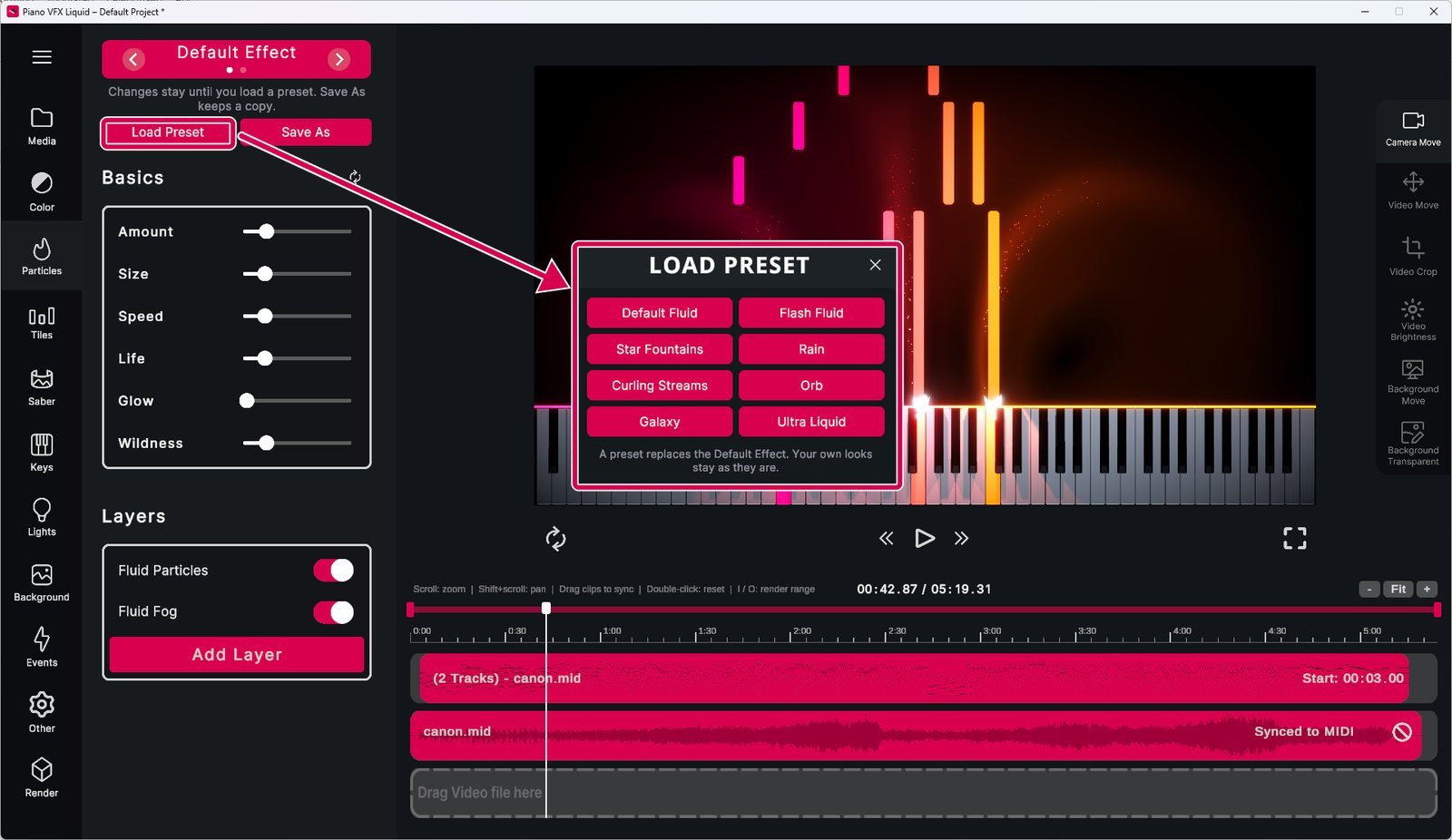
Under the basic settings you have the particle layers. You can layer up to 6 particle systems on top of each other. There are 3 kinds of layers: Particles, Fluid Particles and Fluid Fog.
By clicking a layer, you can edit its settings, like how the particles are emitted, how they move, their shape and whether they have a trail or fog behind them.
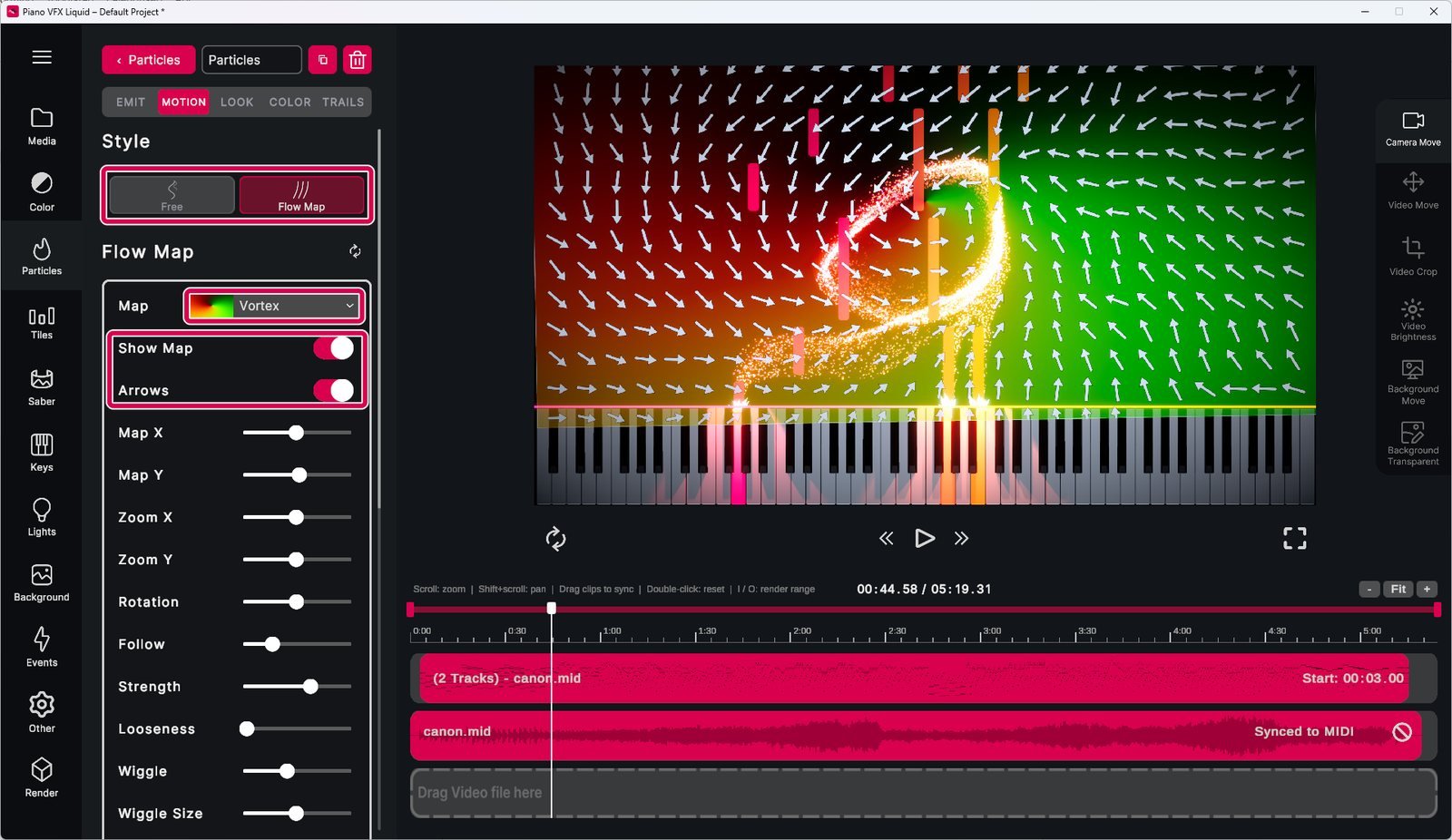
Under Motion, you can switch between 2 motion modes: Free and Flow Map. With Flow Map, you can choose a flow map or upload your own texture, which is placed behind the particles. The particles follow the directions stored in the map. Turn on Show Map and Arrows to see the map and the arrows that guide the particles.
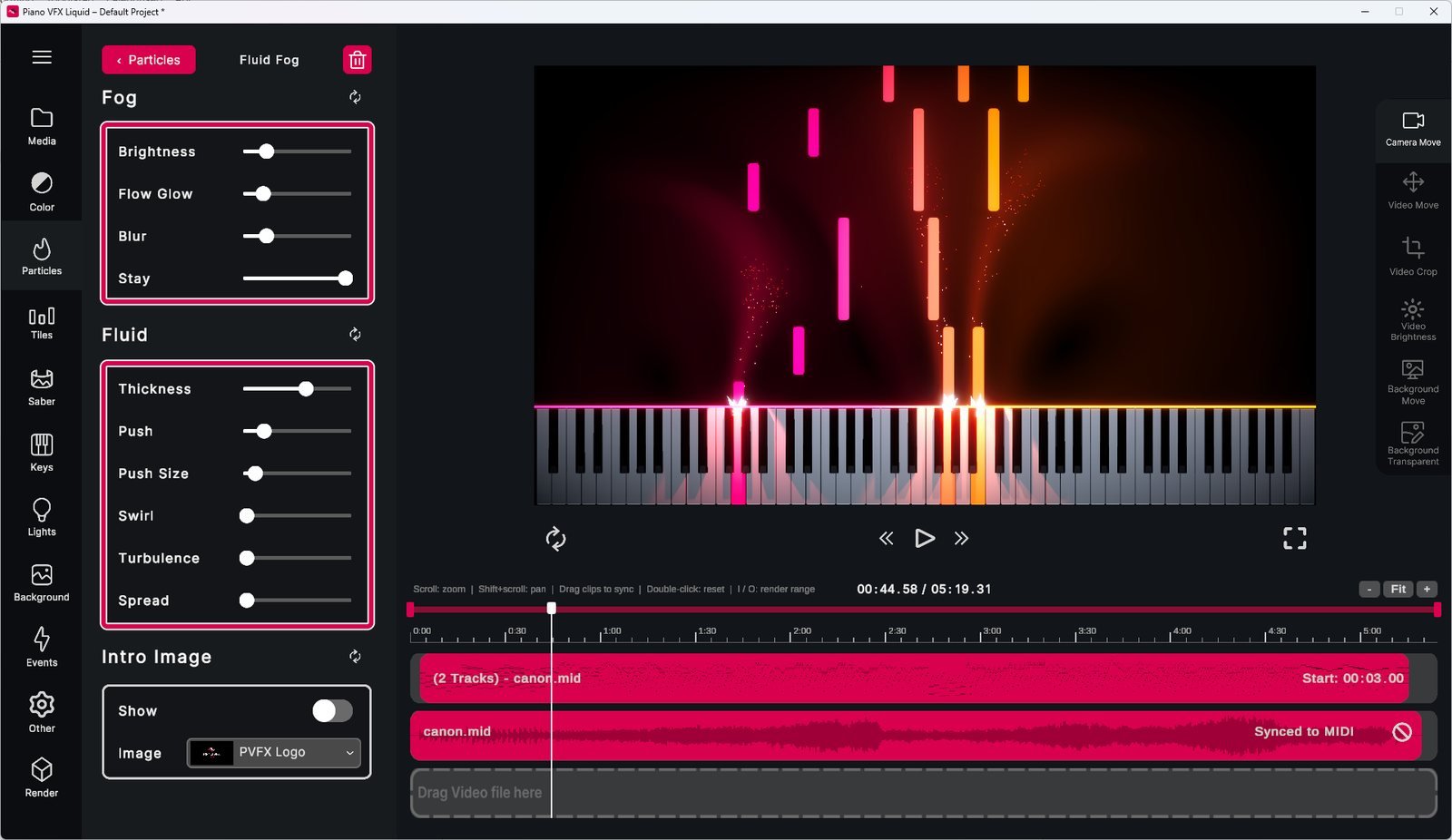
On the Fluid Fog layer, you can control the fluid simulation and the look of the fluid fog.
The Fluid Particles layer adds particles that flow along with your fluid simulation.
Tiles
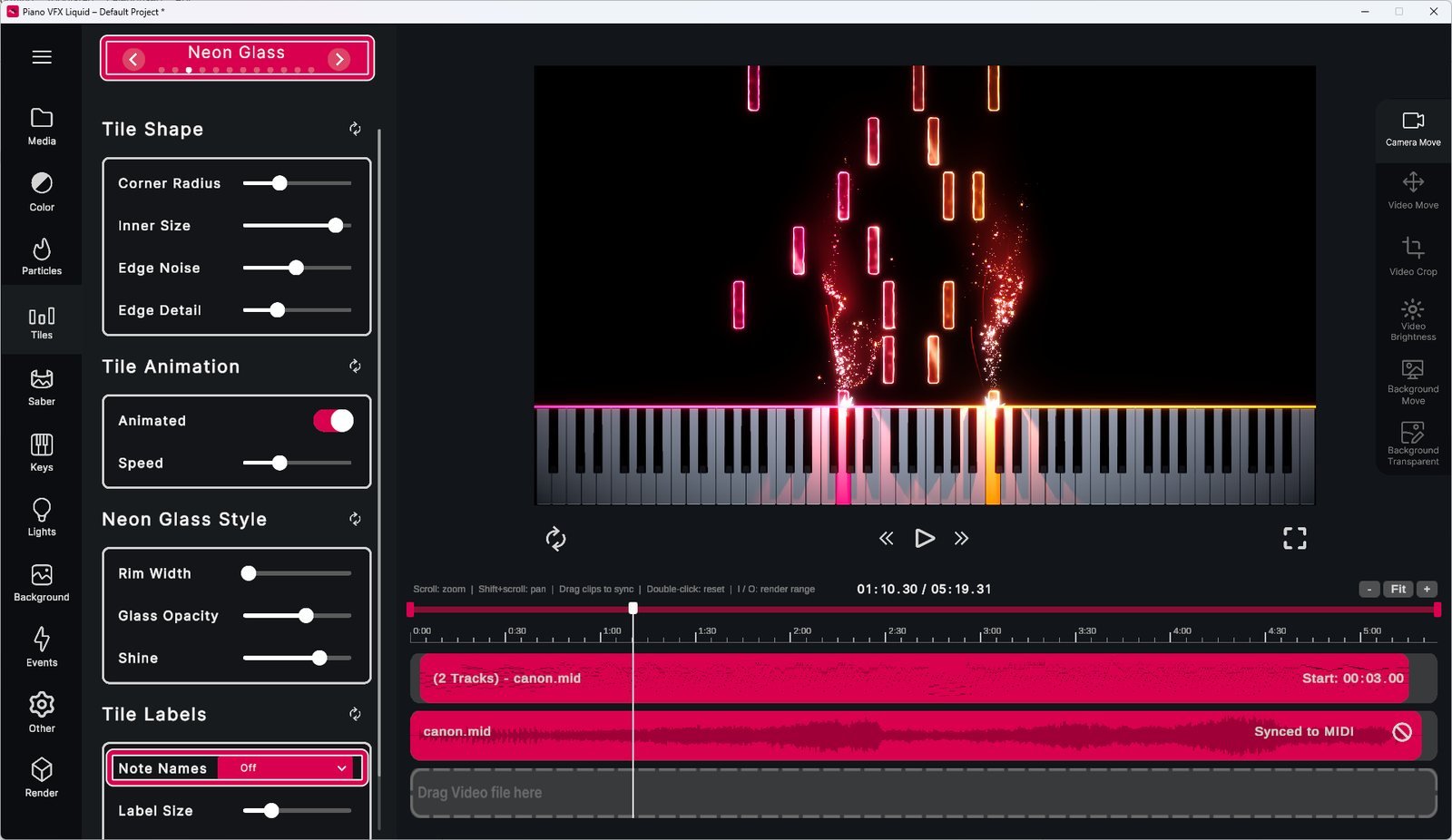
You can choose a style for the tiles with the horizontal selector. There are a lot of different styles and each one is customizable. You can also turn on note labels, which show the note letter on the tiles.
Sabers
You can select and customize the saber the same way as the tiles.
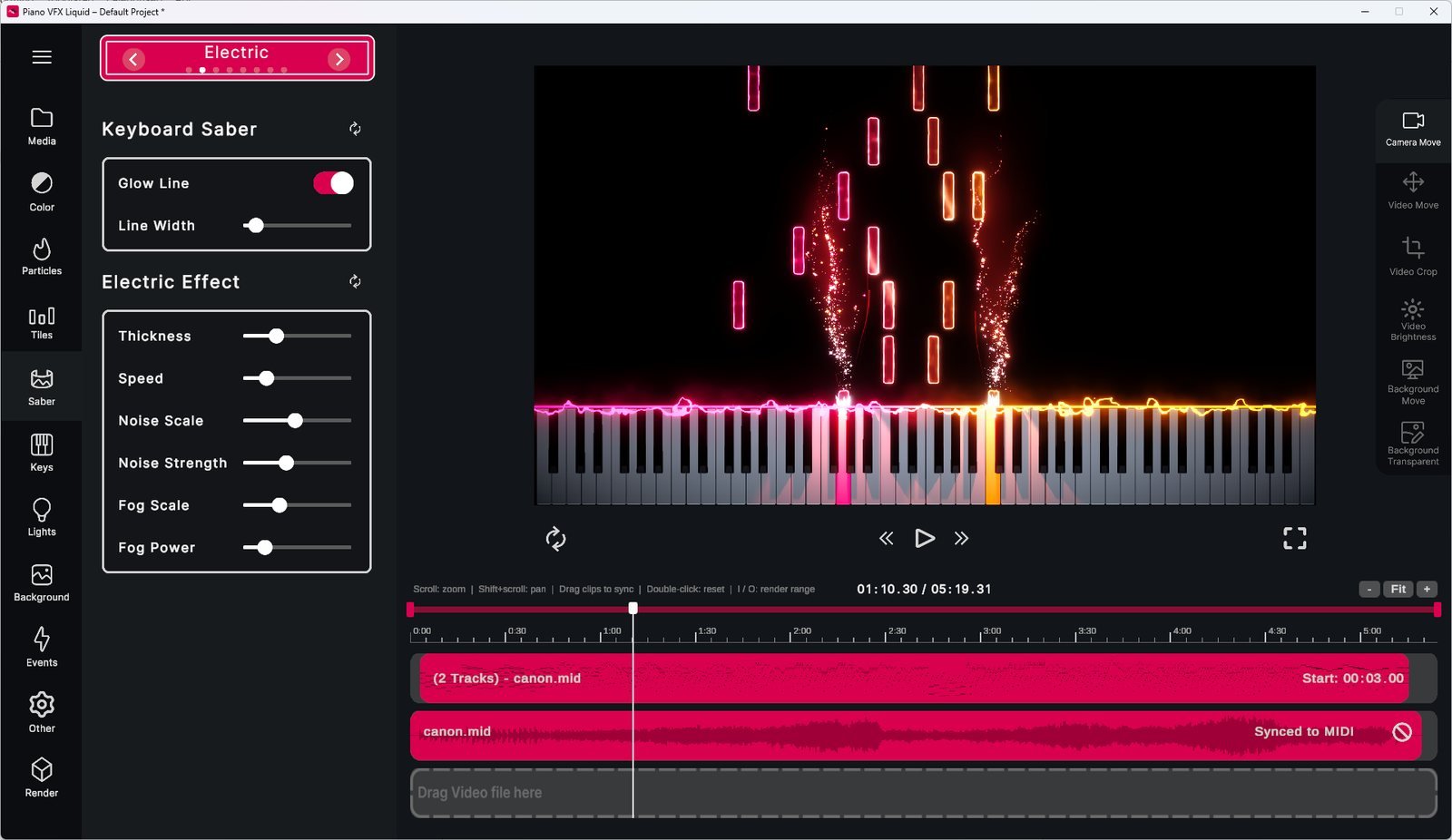
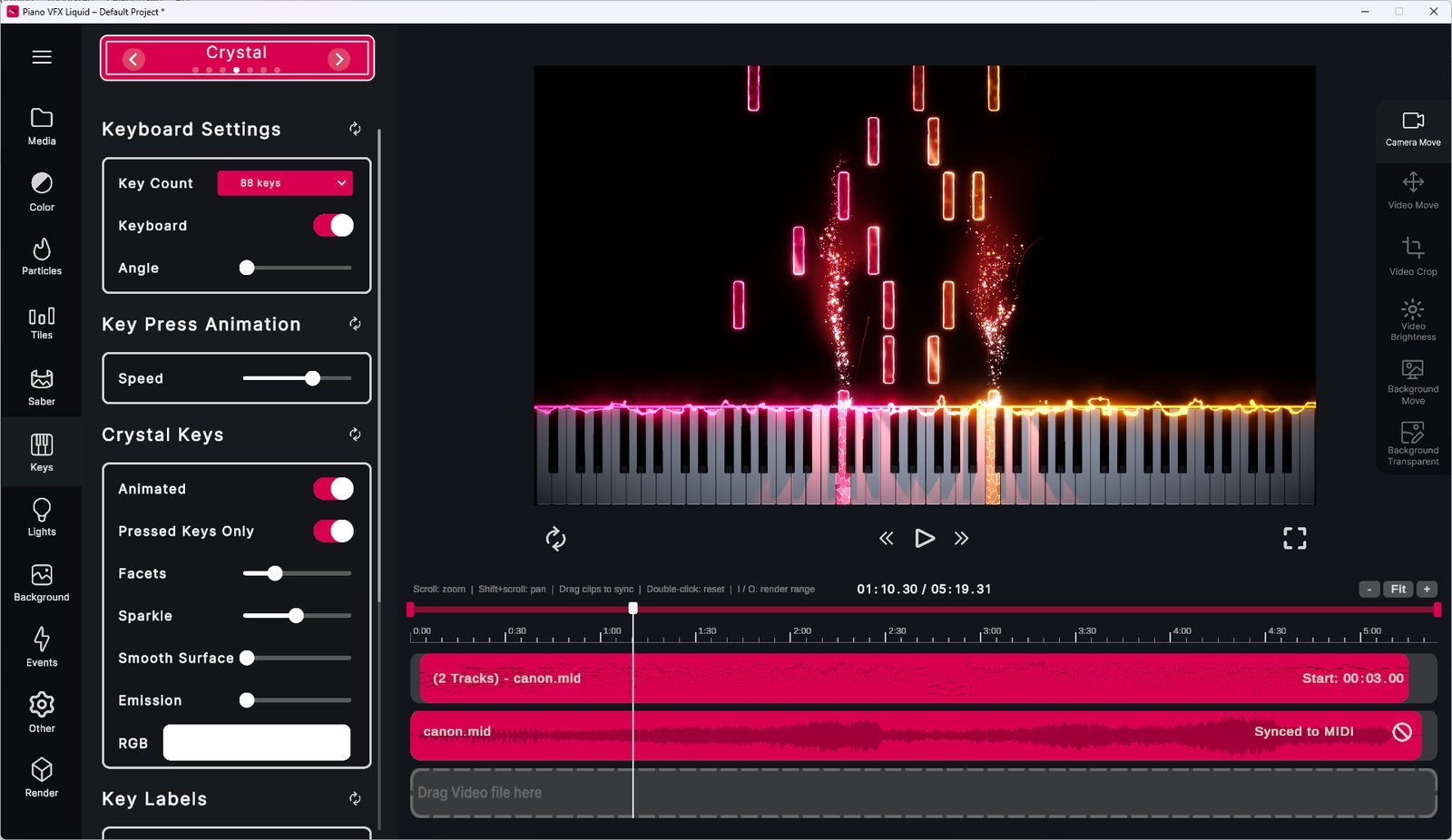
Keys
You can select and customize the keys the same way as the tiles.
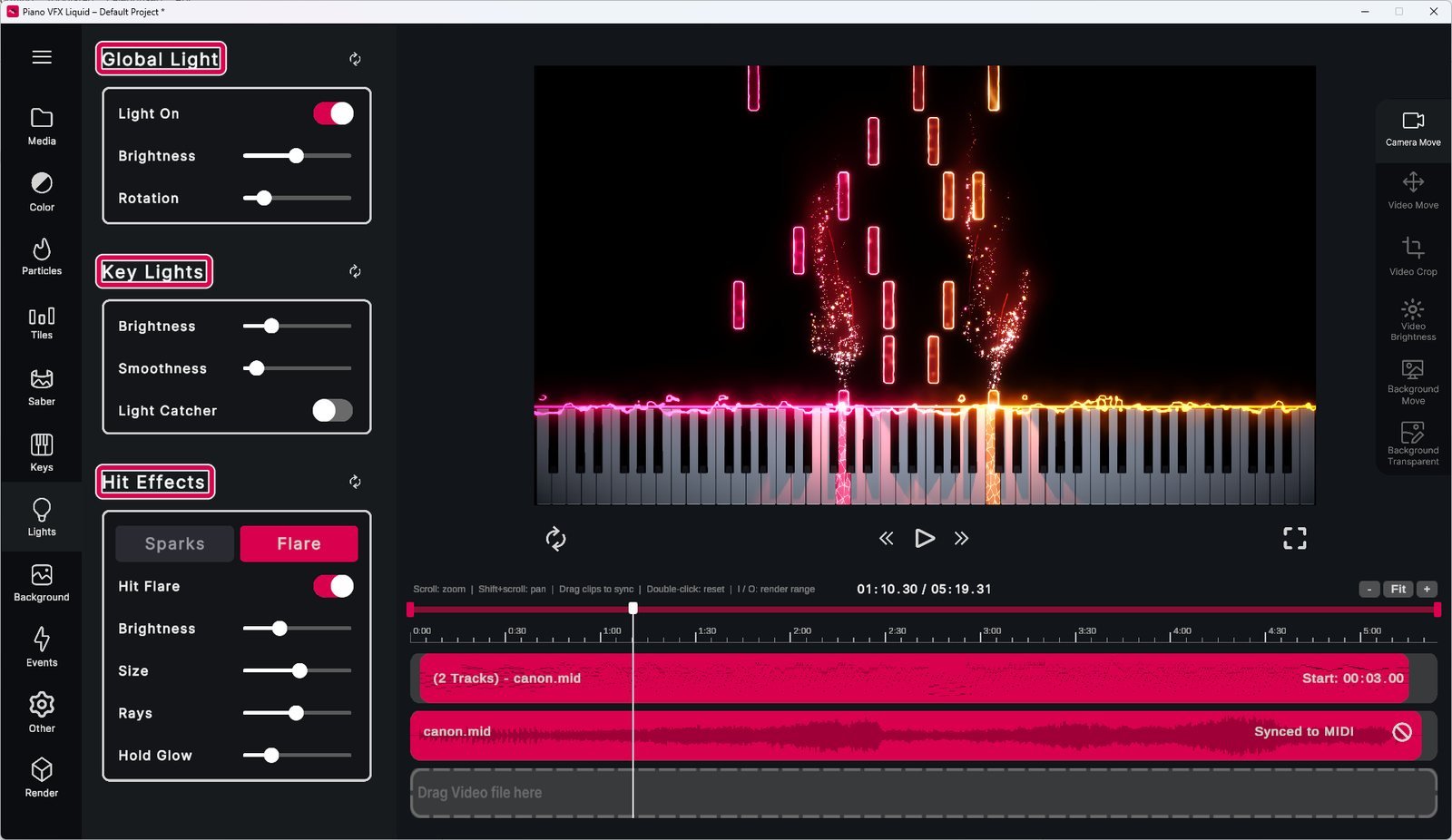
Lights
Global Light changes the lighting that all keys receive. Key Lights changes the light that lights up when a tile hits a key. Hit Effects adds sparks or a flare where the tiles hit the keys.
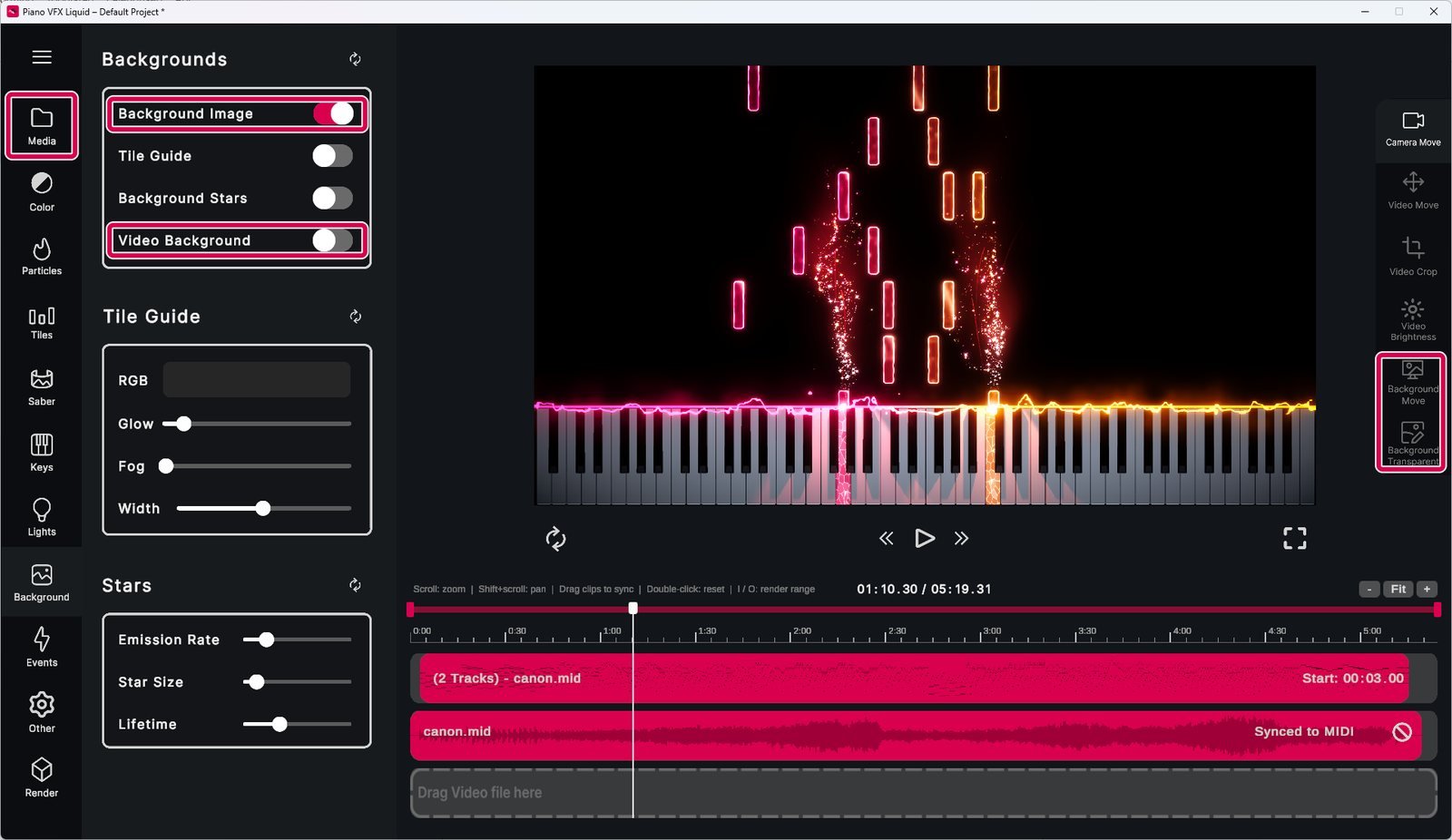
Background
You can place multiple elements in the background. For example, by dragging an image file from the Media tab onto the preview, the image becomes the background. You can then change its size, position and brightness with the background tools on the right.
If you have a video imported, you can also set the video as the background here.
Events
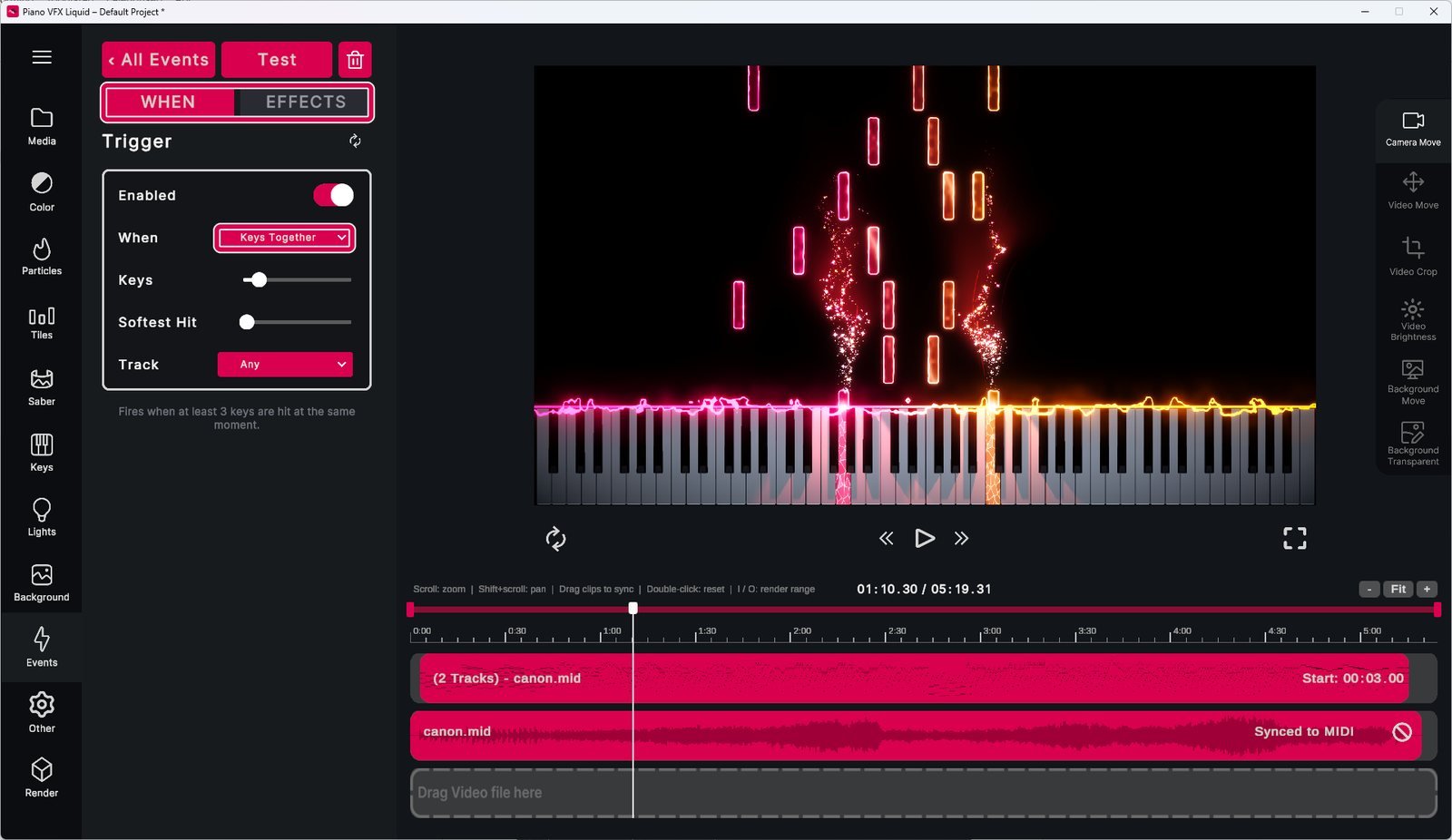
Events is a completely new feature. It triggers effects based on the MIDI file on the timeline. Under When, you set when the event happens, like a loud key press or several keys pressed together. Under Effects, you turn on and customize the effects that trigger when the When condition is met.
Rendering
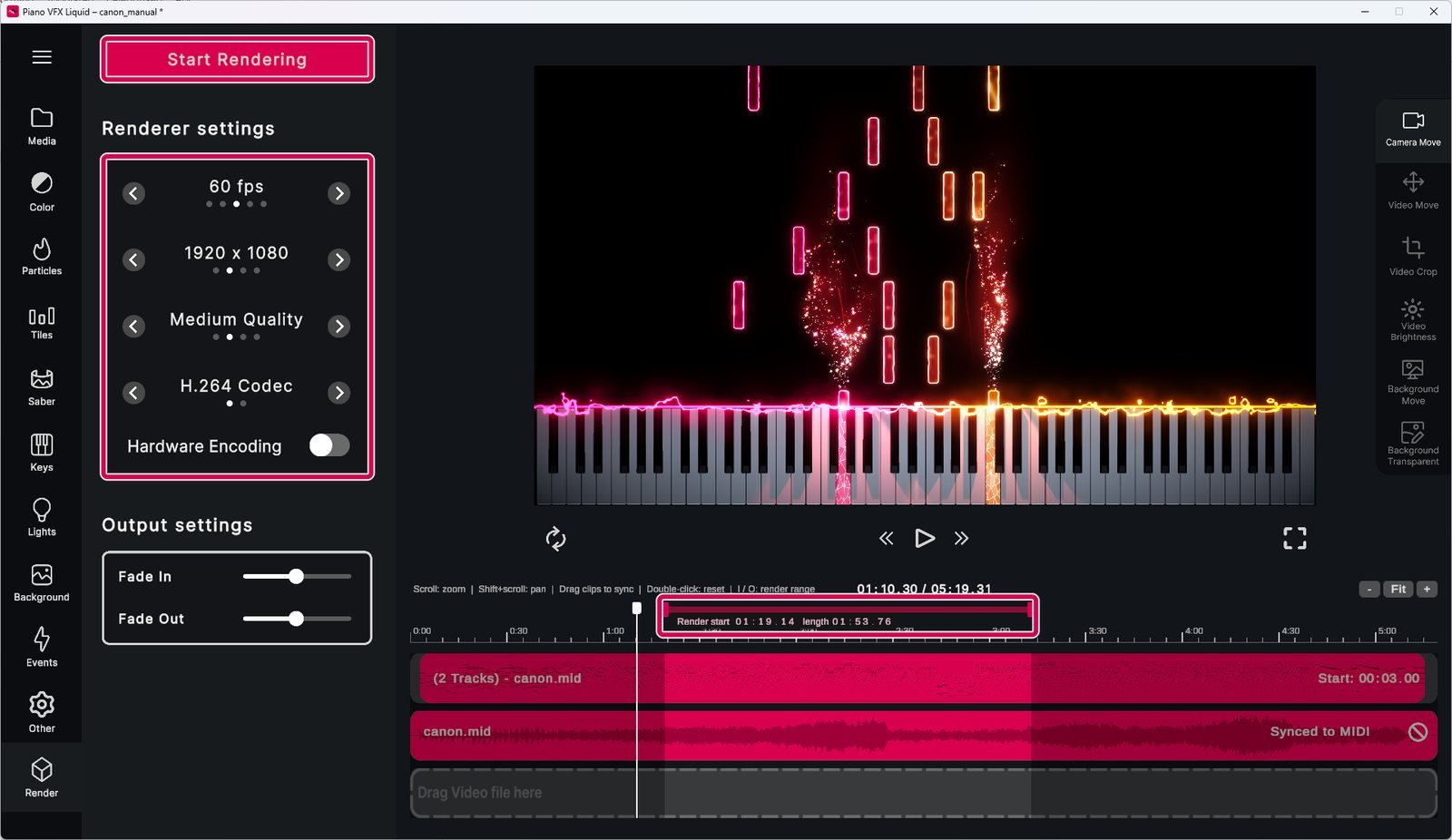
Under Render, you can choose your render settings. On the timeline, the red markers set where the render starts and ends.
Saving
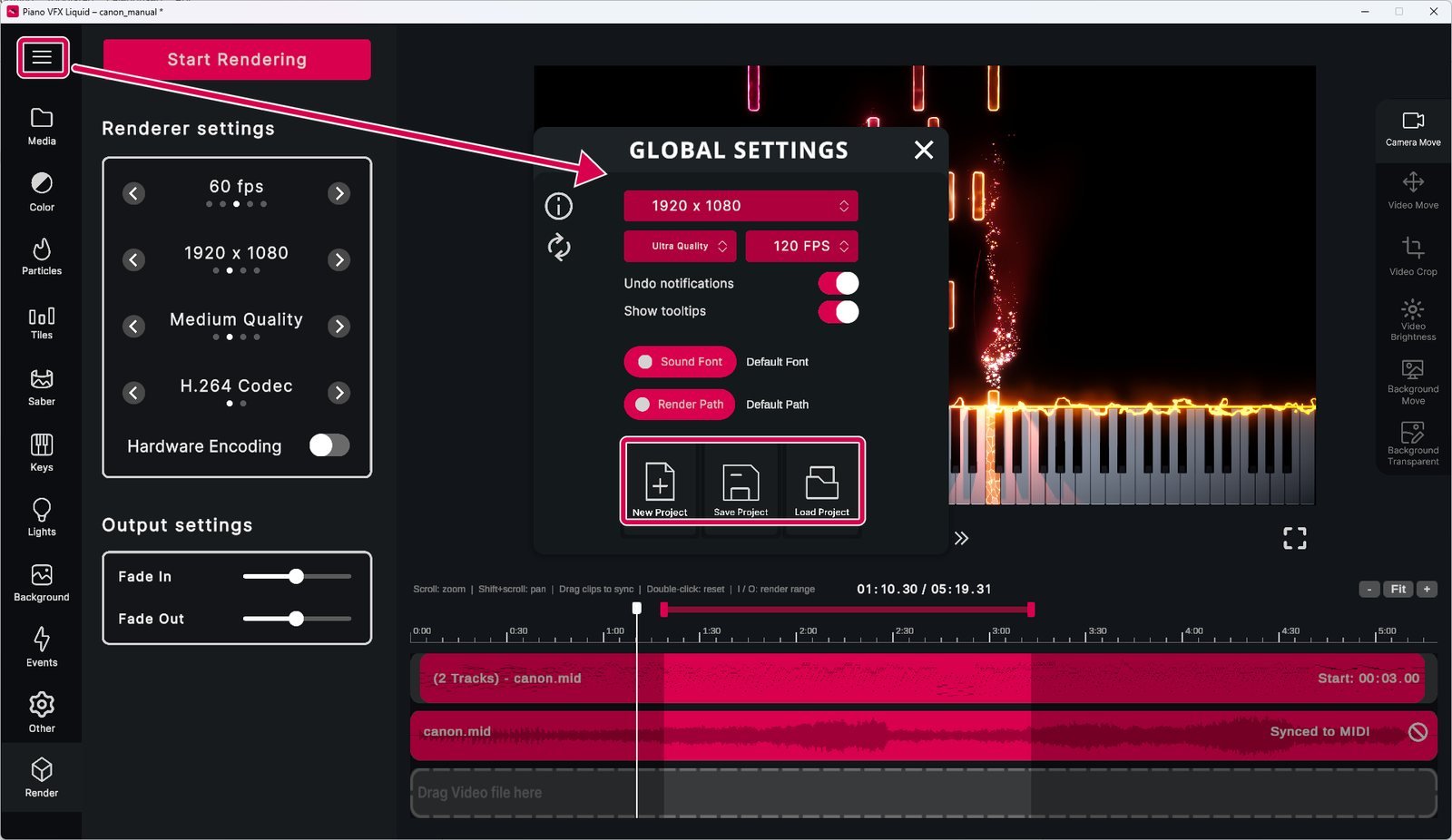
Under the main menu (the three lines at the top left), you can save your current project, load a saved one or start an empty one. Piano VFX Liquid projects have a .pvfx extension. You can open these files with Piano VFX Liquid and the project loads automatically on startup.
Video
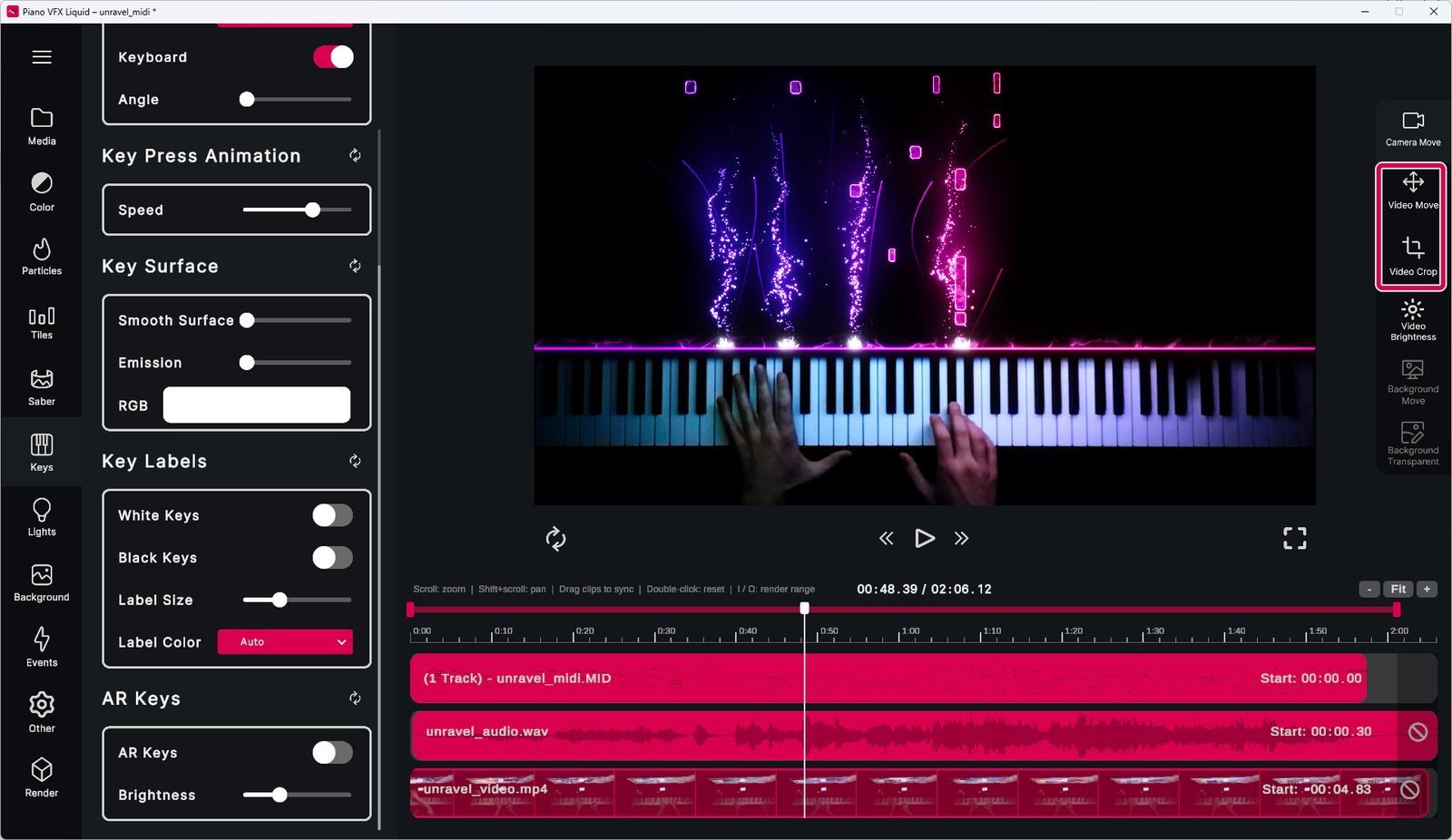
You can make full top-down piano videos with effects in Piano VFX Liquid. To add a video, import it and drag it to the video slot on the timeline.
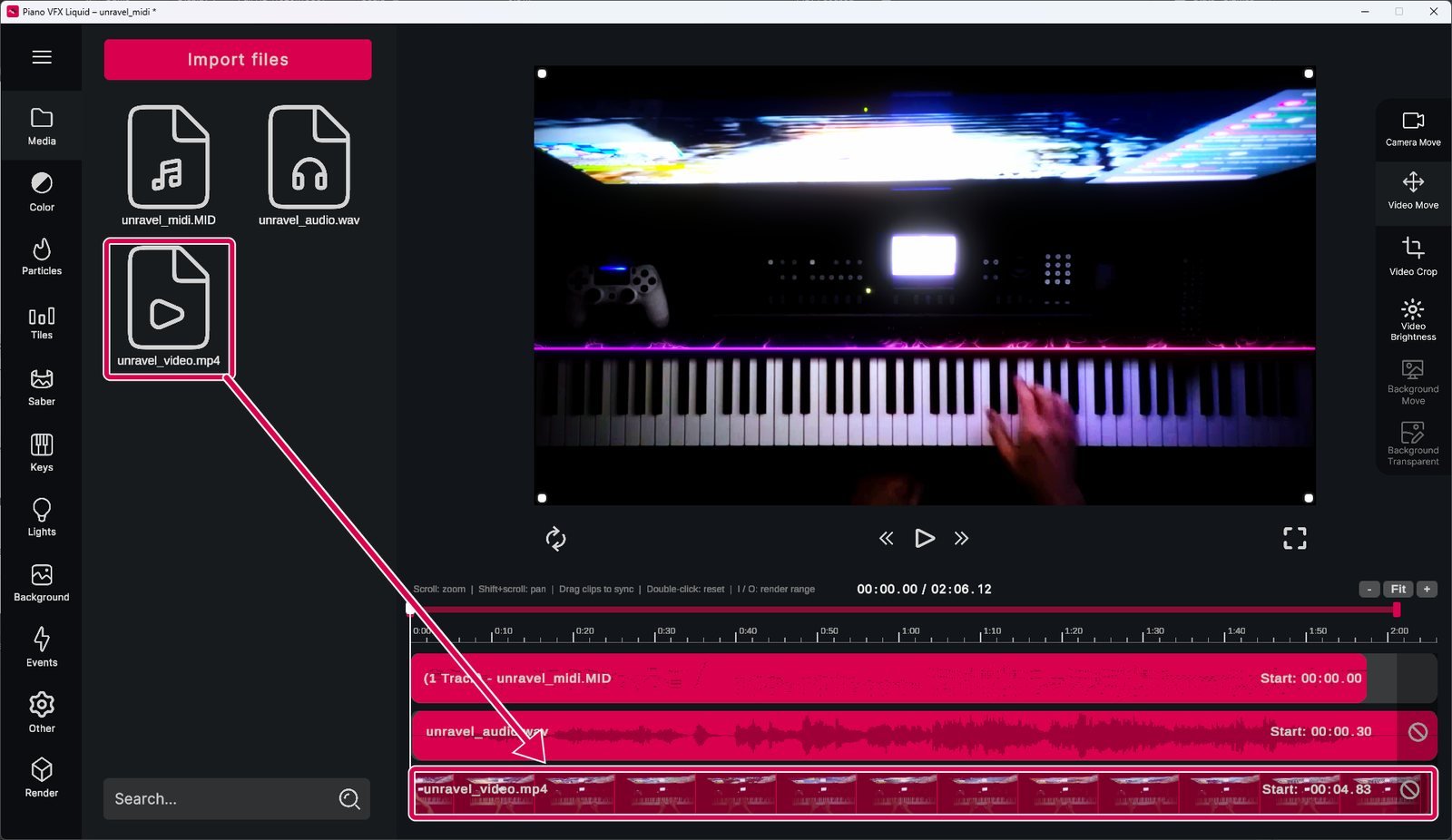
You can use the Video Move and Video Crop tools to line up the video with the virtual keyboard, so it looks like the tiles fall onto your real piano.
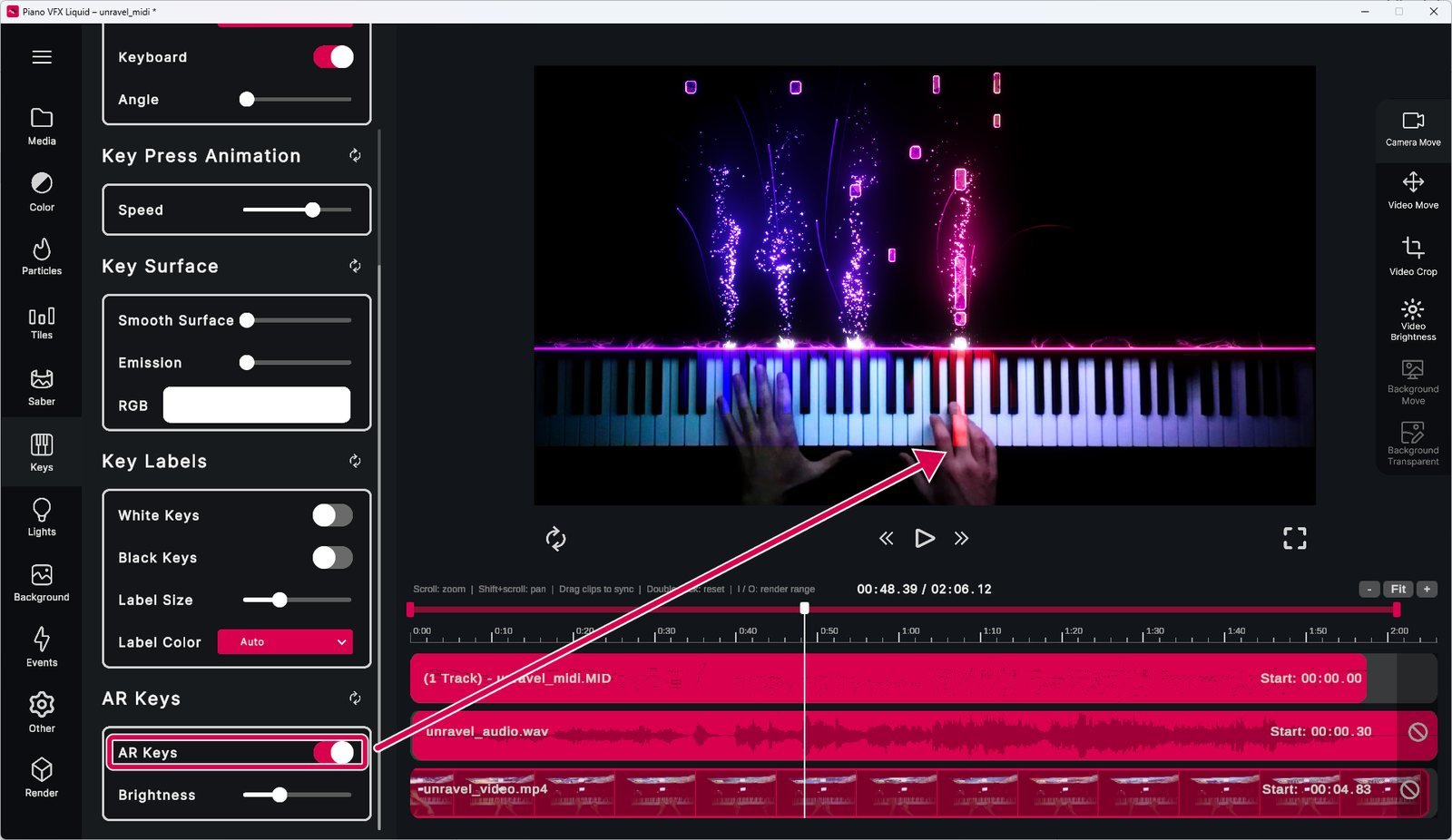
You can also turn on AR Keys in the Keys menu, which highlights the pressed keys, or Light Catcher in the Lights menu, which simulates lights on your keyboard.
Under Other settings, Audio & Video, you can turn on the video sound if you'd like. If the video is shorter than the MIDI file, you can also keep showing the last video frame after the video ends.
Aspect ratios
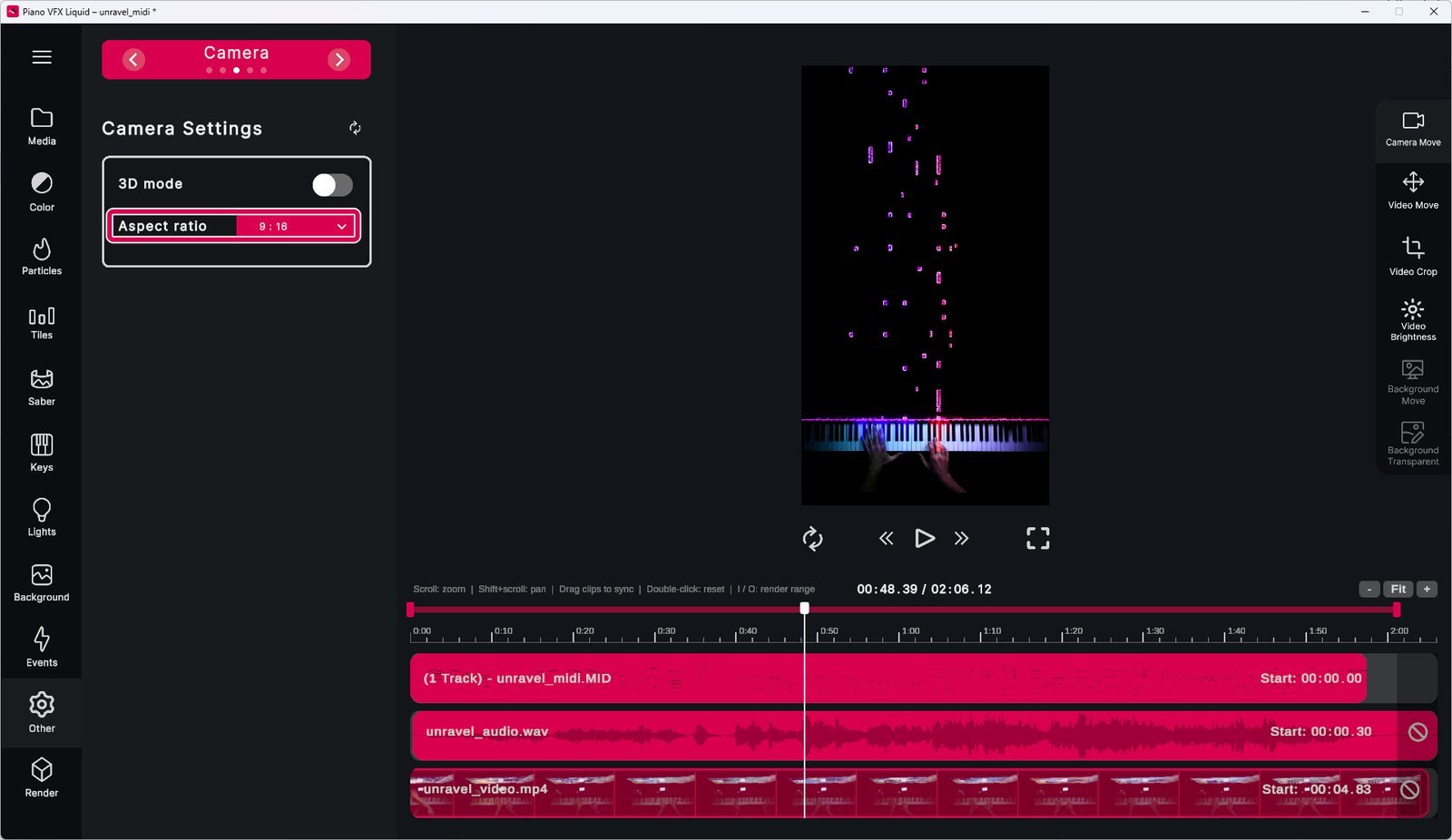
Under Other settings, Camera, you can choose a different aspect ratio. This is useful for making videos for ultrawide monitors or for phones with portrait screens.
3D mode
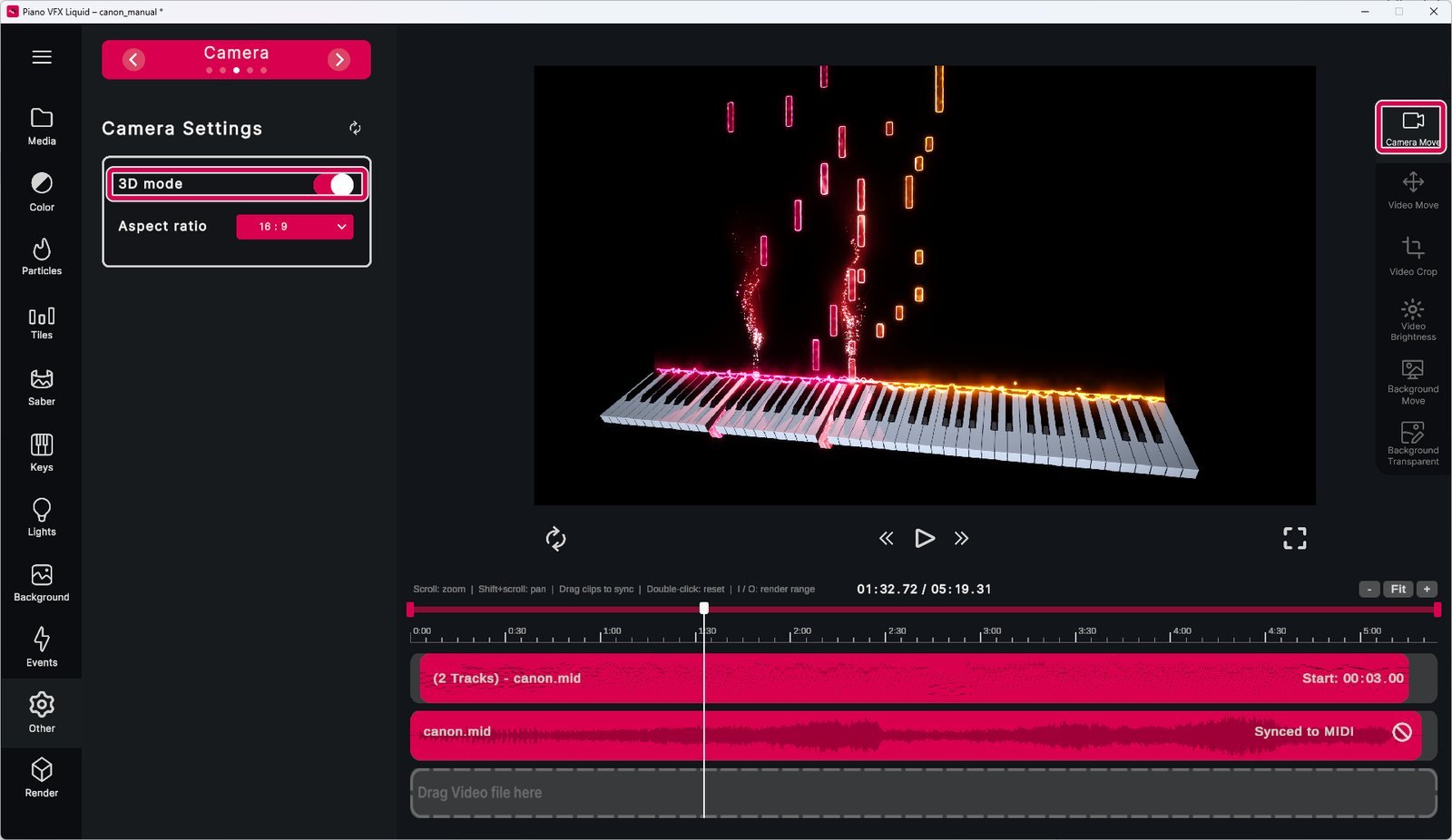
Under Other settings, Camera, you can also switch the camera to 3D mode. You can also do this by pressing Tab while the Camera Move tool is selected.
In 3D mode, you can change the camera's position and angle with the left, right and middle mouse buttons. If you have a video on the timeline, it automatically becomes the background. This is useful if you filmed your piano playing at an angle and want the falling tiles to match the perspective of your video.
Live play
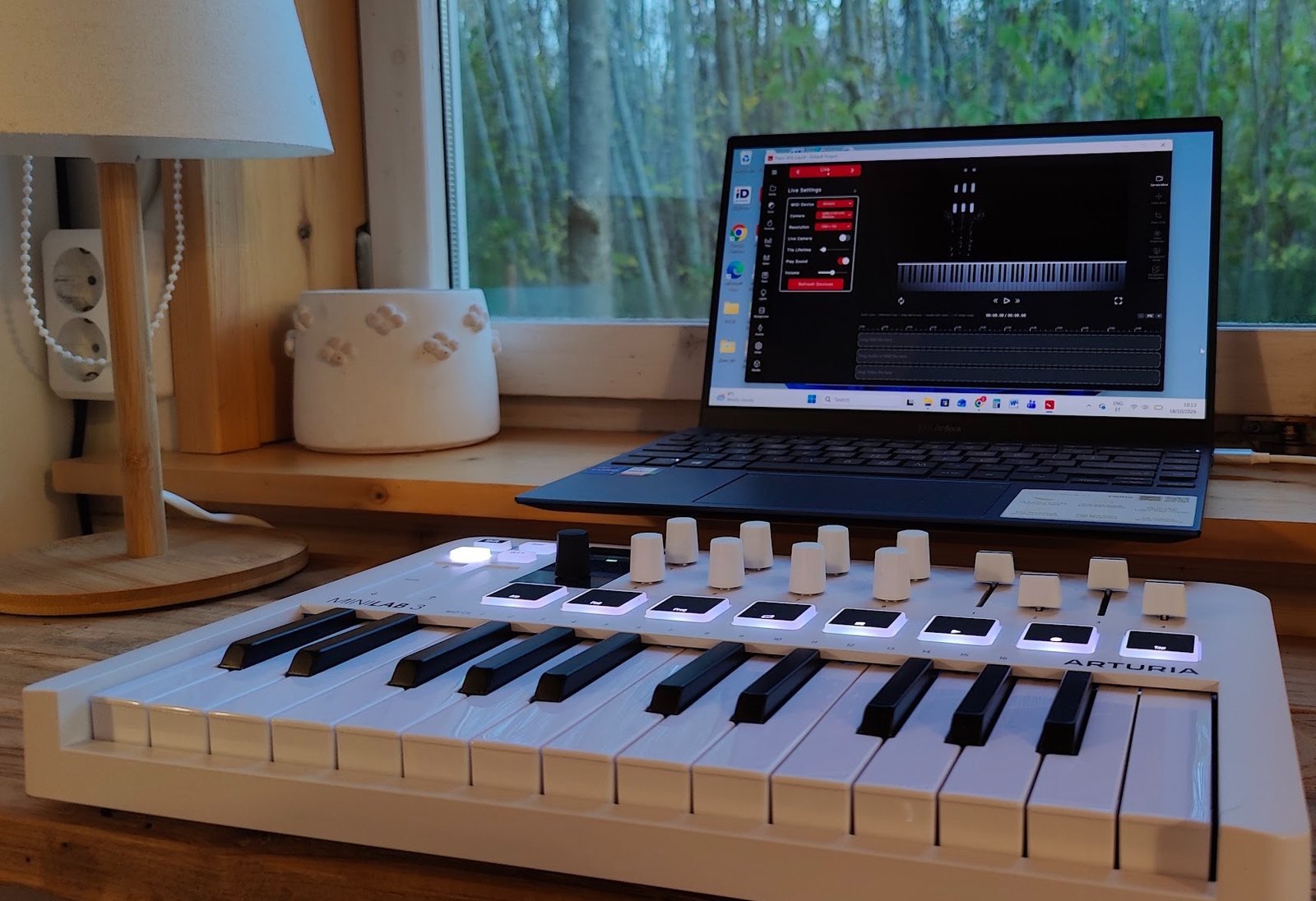
Piano VFX Liquid has a very basic live play feature. Under Other settings, Live, you can select your MIDI keyboard. Your key presses then appear in the preview.
Other settings
Under Other settings you can change the settings that didn't fit elsewhere, like MIDI animation, post processing and audio.
Main menu
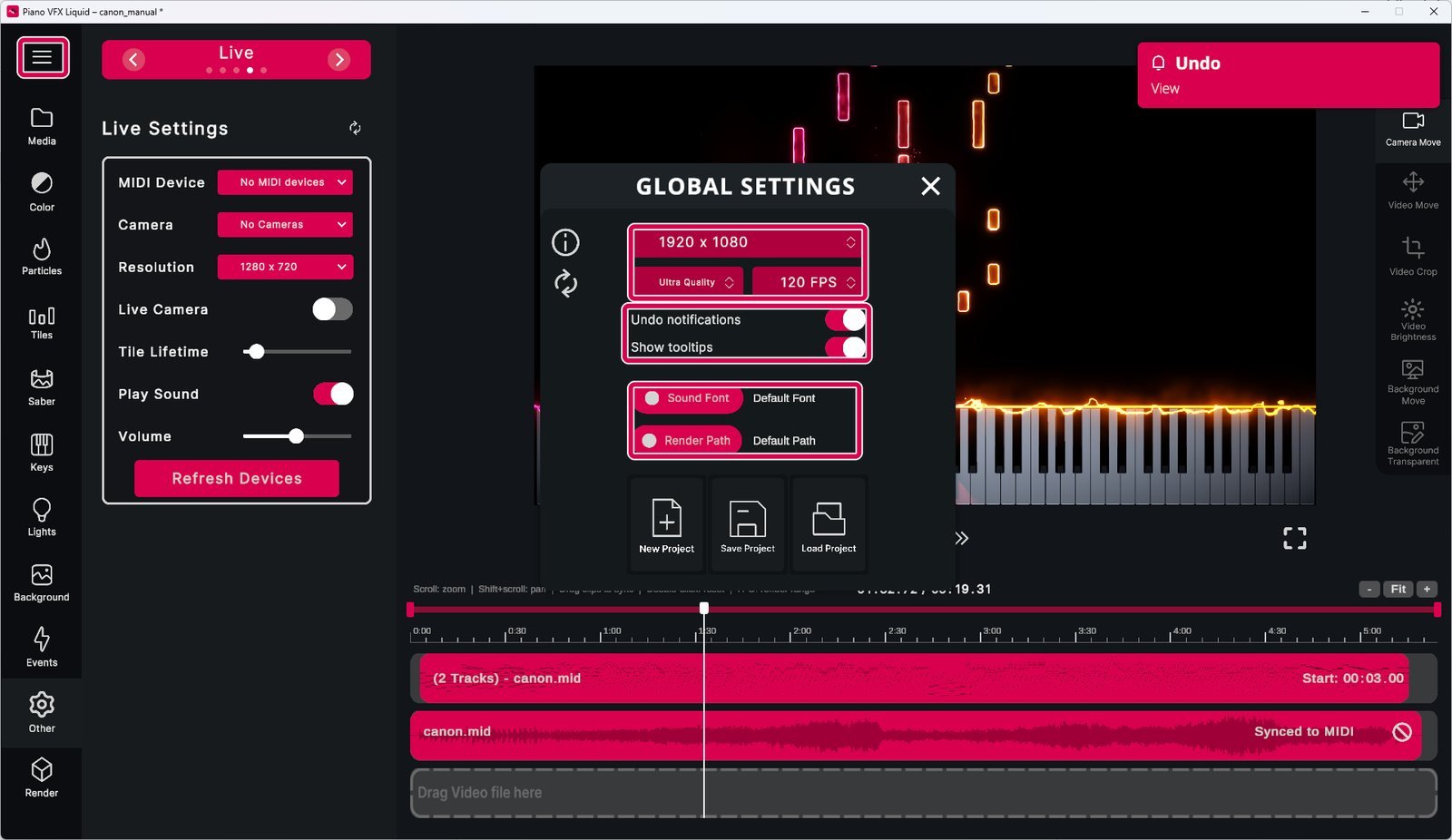
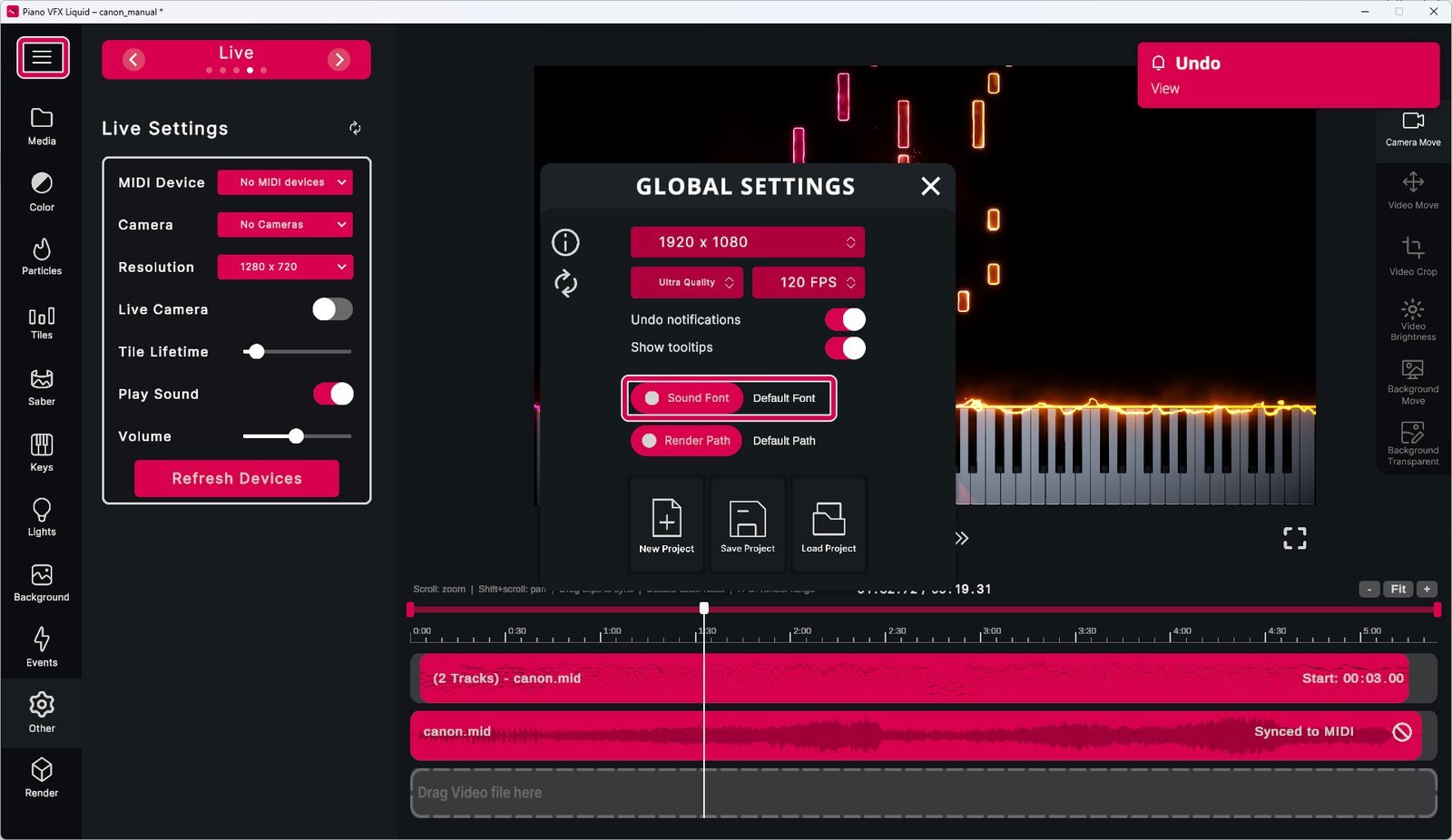
Under the main menu you can change the default render path and load your own SoundFont. You can also change the preview quality and the window size. If you don't want to see the undo notifications or tooltips, you can turn them off.
Different instruments
To keep the download small, Piano VFX Liquid comes with a piano-only SoundFont. When it makes audio from your MIDI file, every instrument plays as a grand piano.
If your MIDI file has other instruments, download the full FluidR3 GM SoundFont from GitHub. Open the main menu, click Sound Font and pick the downloaded file. Then drop your MIDI file onto the audio track again to make the new audio.
That's it
I hope this is a helpful guide to get started. If you have any questions, bug reports or feature requests, please contact me at support@piano-vfx.com.